How I make my Anki decks
Projects, University ·12 mins read
A set of tips & tricks and other useful info I learned while creating my Anki decks (and my university workflow).
toc Table of contents
Introduction
Since I first discovered Anki last year, I kept using it extensively to study for my university courses, mostly because, once the cards are made, it is the most frictionless way of studying for me: I have all the material and exercises ready and I get presented them again automatically when I’m almost forgetting them.
I use Anki like an interactive textbook to study whenever I can focus without the friction of managing papers and notes (even on mobile with Ankidroid, with all cards synched). I don’t always learn by heart every card, especially since I include exercises in my decks too in addition to theory concepts & formulas, but when I try making them again, I can easily determine if I understood something or I should revise it.
While creating new decks, I’ve discovered and learned many tricks and useful tools to improve and speed up my workflow, and I want to put them all in one place and share them with anyone who might find all this useful. I always try to make my cards interactive and possibly with visuals (preferrably in SVG or MathJax), so I know a lot about integrating those elements in the flashcards.
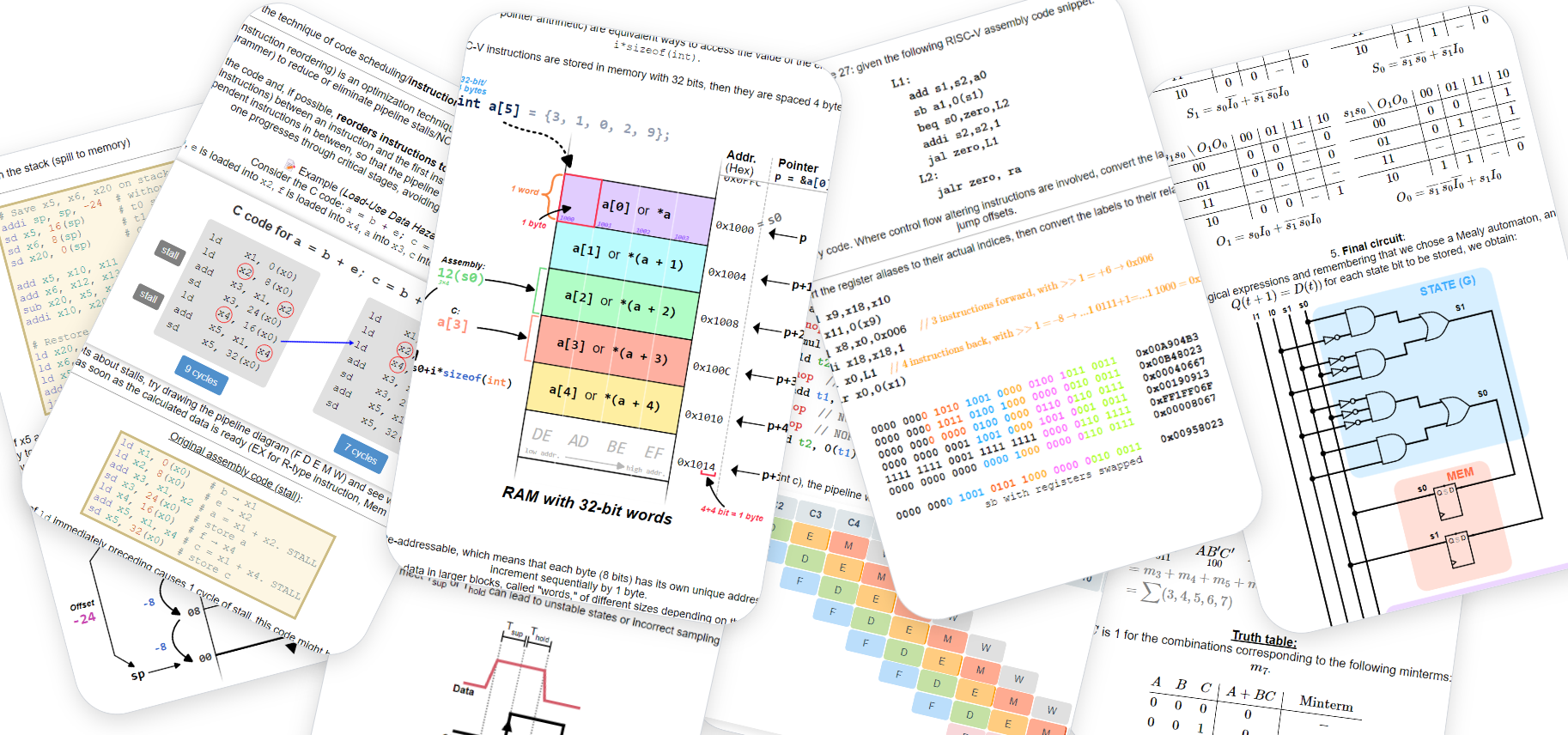 An example of the visual things you can achieve with just HTML, CSS, SVGs and pure MathJax1.
Don’t expect super clever tricks or life changing tips, though, the following are just little useful things to know if you also create Anki decks!
Browse view
One thing I find useful is to display the Stability and Created fields in the Browse window and to sort flashcards by their creation date. I try to create cards roughly in the same order as the content I need to study, and that is usually the same in which you get presented the cards during review, too. This is my usual view:
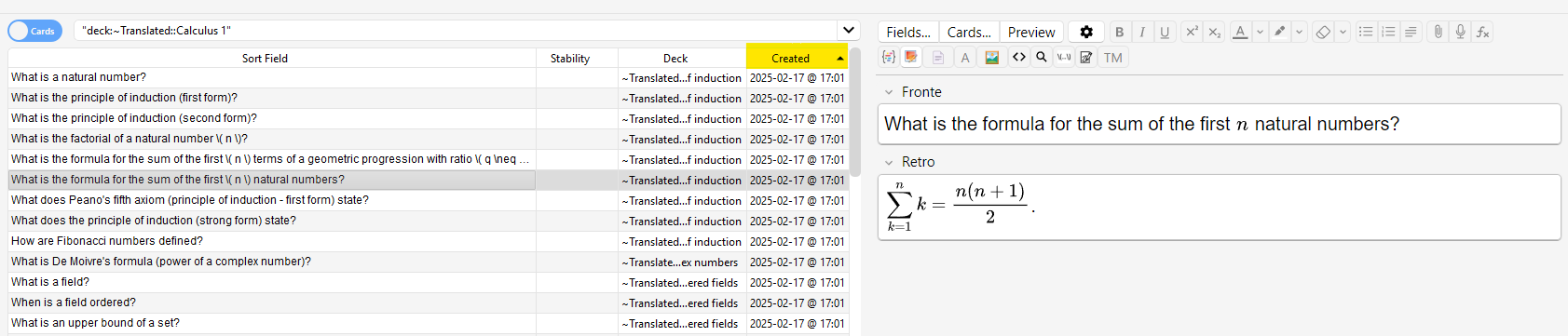
In general, flashcards should not have an order as they are self-contained pieces of information, but in reality, it’s often useful to know some bits of knowledge before studying other ones, so this is my way of trying to order my Anki flashcards both in the Browse windows and during review without using advanced features. That’s surely not the best way to do that, it’s just the one I currently use.
Shortcuts & RegEx
All the following shortcuts are to be used on the Browse window (open with B):
- Ctrl + Shift + X to open the HTML code editor.
- Ctrl + Alt + F to Find & Replace on selected cards. There you can also use regular expressions. One I often use it this one to convert code text from Markdown syntax to HTML code tags:
Find: `([^`]+)` Replace: <code>$1</code> - Select text, then Ctrl + M, M to convert selected text into a MathJax inline block.
Interactive embeds
You can’t use JavaScript code in vanilla Anki for security reasons, but you can always use <iframe>s to embed websites, which is what I do to integrate the following media.
YouTube videos
<iframe
width="819" height="461"
src="<URL>?start=123" title="<title>"
frameborder="0" allow="encrypted-media; picture-in-picture;"
referrerpolicy="strict-origin-when-cross-origin"
allowfullscreen=""></iframe>
Websites
Most websites will load as normal when embedding them in your flashcards with iframes, including the ones hosted with GitHub Pages, but if the site sets a X-Frame-Options header or a Content-Security-Policy rule that blocks framing, then it won’t load inside an iframe.
If the website you want to embed includes videos in the page itself (not hosted on YouTube or other platforms), those videos will work onnly if they use WebM format, as in QTWebEngine (the engine that Anki uses) only WebM open standard is supported. I discovered this while working on a custom version of SQL Joins Visualizer.
If you want to provide your own HTML directly inside the <iframe> tag, use the srcdoc attribute. For example:
<iframe srcdoc="<h1>Hello!</h1><p>This is my inline page.</p>"></iframe>
Geogebra
<iframe
title="<title>"
src="https://www.geogebra.org/material/iframe/id/<ID>/width/800/height/500"
width="800" height="500" allowfullscreen=""
style="border: 1px solid #e4e4e4; border-radius: 4px;"
frameborder="0"></iframe>
PDFs (online)
This one is more difficult. AFAIK there are two options:
Without add-ons (GoogleDrive PDF viewer):
<iframe src="https://docs.google.com/viewer?embedded=true&url=<PDF_URL>.pdf"
width="900px" height="600px">
</iframe>
With add-ons (Add Appendix):
<iframe src="https://pdfobject.com/pdf/sample.pdf#page=1"
width="900px" height="600px">
</iframe>
For this to work, the add-on Add Appendix by abdnh is required. Code available on the GitHub repo. This approach also supports page references and doesn’t depend on Google services.
I’ve asked on Anki Forums to add a PDF viewer natively on Anki, as it shouldn’t be too heavy in size or difficult to implement, but development is slow (due to its open source nature) and at the time of writing there’s no such a feature out-of-the-box.
CSS Styling and Light/Dark mode compatibility
If you need to style an HTML element in Anki, I’d recommend to always use inline styles. That’s because, for some unclear reason, style tags get removed when exporting flashcards in .txt format and that can become very annoying. The Ankitects team still hasn’t fixed this issue, so I’d keep using exclusively inline styling to be safe.
If you noticed, when switching light/dark mode in Anki, the text with no custom color switches from black to white and vice versa (assuming no custom card styling) to keep it readable against the background. You can reuse that functionality in your custom styling too by using the currentColor value (instead of a static hardcoded color such as #ffffff/ white) for any elements whose color should automatically update when the theme changes.
SVGs
To create and edit SVGs, I use Inkscape (FOSS).
Sometimes I need to extract diagrams or other vector drawings from PDFs, and for that, I initially used online tools to convert PDF pages into SVGs, but it was very cumbersome and limited.
So I made my own GUI tool in Python to “crop out” areas of a PDF page. It supports PDFs from URLs (local too) and also has features to fix some issues with text when converting. It’s called PDF to SVG Cropper if you are interested in using it.
To resize an SVG in Anki, first make sure it has a viewbox, then you can simply use the width HTML parameter on the <svg> tag to change size without altering the aspect ratio or clipping.
For quick previews, optimizations and prettify, I find svgviewer.dev to be very useful. There’s also svgomg.net.
Translating decks
I’m Italian but I want to make my best decks available in English too. I have no time to translate by hand but I found ont that LLMs are great for this mechannical task!
What I need is just Visual Studio Code with Copilot and the deck in .txt format. So I export decks as Notes in Plain Text format (with “Include deck name” checked) and import them int VS Code. For that, again, I make sure not to use <style> tags in the flaschard Anki-HTML code as they are stripped down.
Then, I select a big portion of lines that I want to translate, making sure to not exceed the context window for inline edits, then Ctrl + I, prompt, enter and check that everything is translated correctly.
I use something like this as the translation prompt (you should give a bit of context about the deck and make sure tab characters are not replaced with spaces):
I’m translating this Anki deck about []. Help me translate this whole selected text correctly (both questions and answers) from Italian to English while keeping the same formatting, structure and whitespace characters (same spaces, newlines, double-double quotes, distinguish between space and tab, etc.) as the original. Also translate deck title (for example, [] becomes []). There should be no Italian words after translation. Continue to translate till the end of the selection.
Even with AI, this task will remain very tedious, especially if the deck includes a lot of SVGs. Inevitably, there will be some little formatting or syntax errors that may cause issues in the import phase. In general, to fix those errors I found that it’s better to compare the translation with the original deck, side by side, using something like WinMerge (if you are on Windows), so to clearly spot the differences in structure and formatting.
It might be useful to run the deck text file through this cleanup script that tries to fix most import errors, but it doesn’t work in all situations.
Further links
My university workflow
Anki programs
I use Anki Desktop on my PC and AnkiDroid on my Android phone, and I sync all my flashcards through AnkiWeb. This setup has worked perfectly for me and anyone should be able to replicate it without difficulty.
Handwritten notes
I currently use a Lenovo ThinkPad X380 Yoga 2-in-1. It’s admittedly an old model (from 2018), but it includes an integrated pressure-sensitive pen, a large touchscreen, all the ports you need and solid specs. Most importantly, you can easily find refurbished units for under $400, compared to the original ~$1300 MSRP, making it a very affordable option for what it offers.
Since I study Computer Science at uni, it’s also much more useful to have a 2-in-1 PC instead of a tablet and a regular laptop, because I can write notes and code on the same device and quickly switch from one to the other if I need to.
On Windows, there’s a great but not so famous app called Microsoft Journal. It’s completely free and includes all the features you need for handwritten note-taking. It even has OCR search, useful if you have readable handwriting (that’s not my case).
File sync with desktop PC
I’ve set up a few shared folders on both my laptop and desktop using Syncthing, so whenever I get home, everything syncs automatically and quickly over Wi-Fi. That’s a bit more complex to setup but doesn’t require any code so non-programmers can still find it perfectly usable and worth the initial setup effort.
Footnotes:
-
Anki bundles the
tex-chtml-fullcomponent of MathJax 3 by default (though-fullcombined components are deprecated from MathJax v4 as they became too large and impractical to bundle into a single file).Packages automatically available out of the box
Core & Standard AMS Packages:base: the foundational MathJax engine structure.ams: general AMS math environments and alignments (e.g., align, gather, split).amsmath: extended mathematical formatting and command structures.amssymb: the complete library of AMS mathematical symbols.amsfonts: core mathematical fonts and typefaces (like Blackboard Bold \mathbb).
mathtools: advanced extensions to the amsmath package.noundefined: prevents rendering failure if an undefined macro is written (displays the macro name in red instead).noerrors: catches internal errors to keep the card text legible.autoload: automatically triggers and lazy-loads other standard packages when specific macros are typed.require: allows you to manually call external extensions directly within a card using the \require{package_name} syntax.newcommand: enables custom macro definitions (like \newcommand and \def) directly within your card templates or fields.configmacros: handles backend configuration of user macros.
bbox: adds background colors and borders to specific math formulas via \bbox.boldsymbol: forces bold mathematical symbol formatting (\boldsymbol).braket: provides Dirac bra-ket notation for quantum mechanics.cancel: draws lines through mathematical structures to show cancellations (\cancel, \bcancel, \xcancel).color: adds inline text and math color mapping options (\color{red}{x}).enclose: draws borders, boxes, and structures around notations.extpfeil: adds customizable extensible arrows.html: links formulas or handles web-specific layouts.mhchem: renders comprehensive chemical equations and notation (\ce{H2O}).unicode: permits the usage of any explicit unicode character point within equations.verb: inserts verbatim code strings inside math blocks.
Other posts:
-
2025 end-of-the-year post
Annual recap of 2025 and what’s next.
-
My problem with GenAI (updated)
My principles and concerns regarding generative AI.
-
2024 year review, university and what's next
A very late annual review of what happened in my life during 2024, and what my goals are next.